Gemini Task Automation in India: Can It Really Order Food and Cabs?
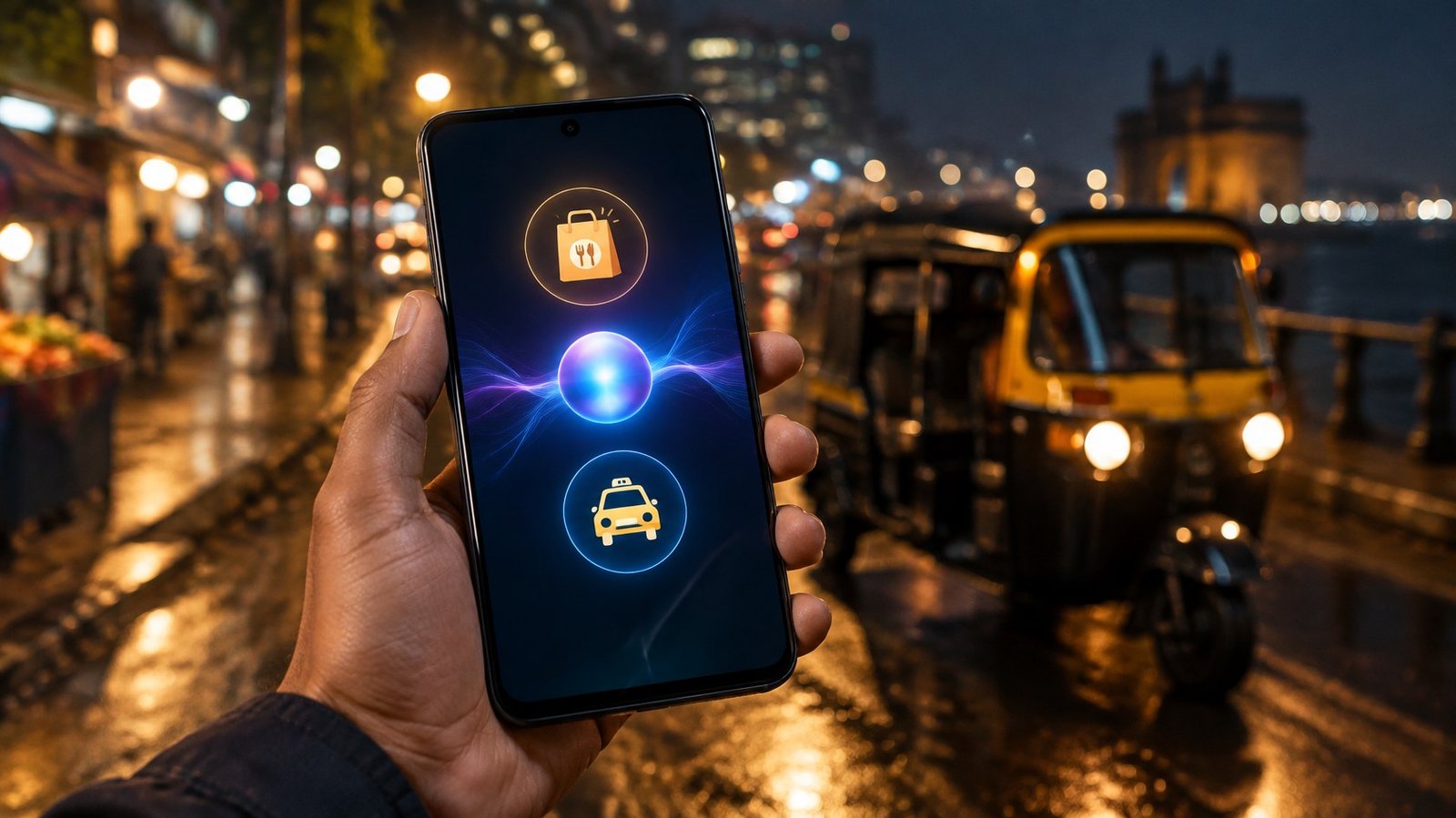
Your phone can now try to order your dinner while you watch it happen on a little virtual screen. Gemini task automation in India went live with Google’s November Pixel Drop on 10 November, and the promise is simple: tell Gemini “book a cab to the airport” or “reorder my last coffee”, and it opens the app, taps through the menus and stops just before you pay. It is genuinely new, it is in beta, and there are more catches than the launch posts let on. Here is what it does, which phones get it, how to switch it on, and whether you should trust it with your Friday biryani.
What Gemini task automation in India actually is
Google calls the underlying feature “screen automation”. In its Pixel Phone Help page, the company explains that Gemini completes tasks “using an on-device virtual phone environment”. In plain terms, Gemini runs a copy of the app in a sandbox on your phone and taps its way through it like a very patient intern. You can watch the whole thing live by tapping View progress in the chat or the notification.
This is different from the older Gemini trick of talking to “Connected Apps” such as Google Maps or YouTube through official integrations. Screen automation does not need the app maker to build anything. If Gemini can see the screen, it can, in theory, use the app. Google says Gemini uses a connected app first when one can do the job.
In the blog post announcing the update, Karthik Thirumalai, Product Director for Android AI, says task automation “is expanding to the UK, India, and Japan”. It joins the US and South Korea, where the feature arrived earlier in the year.
Which phones get it in India
This is where most people will hit the first wall. According to Google’s own support page, you need one of these:
- Pixel 10, Pixel 10 Pro or Pixel 10 Pro XL
- Pixel 11, 11 Pro, 11 Pro XL or 11 Pro Fold
- Samsung Galaxy S26 series, Galaxy Z Flip 8, Z Fold 8 or the Tab S12 series
You also have to be 18 or older and signed in with a personal Google account. Work, school and supervised (Family Link) accounts are excluded. A Pixel 9 or Galaxy S25 owner is out for now, however fast the chip.
The second wall is language. Google says screen automation currently works in English, Japanese and Korean. No Hindi, no Tamil, no Hinglish. That is a strange gap in a country where the same Pixel Drop added Hindi to Google’s conversation summaries, and where Amazon is already pitching Alexa+ in Hindi. If you were hoping to say “mere liye ek auto book karo”, you will have to wait.
How to turn it on and use it
Google is rolling it out gradually. Update the Google app and the Gemini app from the Play Store, install the November Pixel Drop if you are on a Pixel 10, then try this:
- Open the Gemini app, or say “Hey Google”.
- Type a specific request, such as “Book a ride to Terminal 2” or “Add milk and eggs to my grocery cart”.
- The first time, Gemini will ask the Google app for permission to use screen automation in that app. Read the prompt before you agree.
- Gemini may ask follow-up questions, then show an action plan. Edit it by simply typing what you want changed.
- Gemini does the tapping. You finish the final step yourself, whether that is confirming the ride or placing the order.
You can control access app by app. In the Gemini app, go to your profile picture, then Settings > Screen automation, pick an app and choose Always allow, Ask every time or Do not allow. Our advice: start with Ask every time for anything that touches your wallet.
Will it work with Swiggy, Zomato, Uber or Blinkit?
Here is the honest answer: nobody outside Google knows yet. Google has not published a list of supported apps for India. Its help page talks only about “select apps”, and the examples it gives are generic: book a ride, order pizza, add groceries to a cart. When the feature launched in the US earlier this year, Google’s announcement named DoorDash, and TechCrunch reported Uber and Instacart among the partners. None of that tells us what an Indian Pixel 10 owner will see in Swiggy or Rapido this week.
So treat any article promising “Gemini now orders from Zomato” with suspicion until you see it work on your own phone.
The fine print nobody should skip
Google is unusually blunt in its own documentation, and it is worth reading. A few points stand out.
You cannot take over on a Pixel 10 or Galaxy S26. On Samsung’s new foldables, you can grab the wheel mid-task with a Take control button. On the Pixel 10 and S26, the help page says you can only stop a task, not take control of it. That matters if Gemini picks the wrong address halfway through.
There are daily limits. Google caps how many screen automation requests you can make per day and how many tasks run at once, without publishing the numbers. The blog footnote adds that “some features may require subscription for higher usage”.
You are on the hook for mistakes. The help page lists what can go wrong, including tapping the wrong item, adding the wrong quantity and “completing a purchase or ordering something without your permission”. Then it says, plainly: “You’re responsible for Gemini’s actions during a task, including mistakes and unexpected results like purchases.”
Prompt injection is real. Google warns that hidden instructions inside app content, a web page or a document could trick the agent into placing an order, changing a delivery address or sending a chat message. Its safeguards include asking you to confirm sensitive steps and pausing for passwords and payment details. Google also tells users never to type payment or login details into the Gemini chat itself.
Half-finished orders stick around. If you ask Gemini to prepare an order and then walk away, the items may stay in your cart. Minor, but annoying when your next order arrives with a stray paneer roll.
Our take: useful for repeats, not for first dates
Task automation is at its best for boring repeat jobs. Reordering the same Sunday groceries, booking the usual cab to the office, rebuying your regular coffee. In those cases you already know what the right result looks like, so spotting a mistake takes seconds.
It is weakest exactly where agents are supposed to shine: new orders with lots of choices, unfamiliar restaurants, apps full of pop-up offers and banners. Indian delivery apps are noisy by design, with coupon carousels, surge notices and upsell screens. A sandbox agent that cannot hand over control on a Pixel 10 is going to stumble there before it gets better.
So yes, try it. Watch it the first few times. Keep Ask every time switched on for anything that spends money, and do not use it when you are in a hurry or in an emergency, which Google itself warns against. If you are curious how other assistants are handling the same idea, our guide to Perplexity Teammates and its always-on AI agents shows a very different approach. And if you have just discovered the Gemini app through this update, our walk-through of making 15-second AI videos with Gemini Omni in India is a fun next stop.
FAQ
Is Gemini task automation free in India?
Google has not announced a separate price. The feature sits inside the Gemini app on supported phones, but there are daily request limits, and Google’s footnote says some features may need a subscription for higher usage.
Does Gemini task automation work in Hindi?
Not yet. Google’s help page says screen automation is available only in English, Japanese and Korean for now, so Indian users need to give instructions in English.
Can Gemini pay for my order automatically?
It is designed not to. Gemini pauses before final steps such as placing an order and before payment details or passwords, so you complete them yourself. Google still warns that mistakes, including unwanted purchases, are possible and that you are responsible for them.