How to Stop Gemini From Using Your Data for AI Training
If you use Gemini to draft emails, plan trips or ask about a strange rash at 1 am, Google has just changed the controls over what happens to those chats. On 16 November, Google announced that the Gemini app is splitting its old all-in-one “Keep Activity” switch into two separate settings: one for your chat history and one for AI model training. For the first time, you can keep your chats saved and still stop Gemini from using your data to train Google’s models. Here is what changed, how to find the new switch on your phone or laptop, and what the setting still does not cover.
What exactly did Google change?
Until now, Gemini gave you one awkward choice. With Keep Activity on, your chats were saved for you to scroll back through, and they could also be used to train generative AI models. If you turned it off to protect your privacy, your history disappeared and some features stopped working. Most people simply left it on.
Google’s announcement says the two decisions will now be separate:
- History decides whether your chats are saved in your account and how long they stay. Auto-delete options are 3, 18 or 36 months, or never, with 18 months as the default, according to Google’s Gemini Apps Privacy Hub.
- A separate training control decides whether your chat content, “including text and attachments”, is used to train generative AI models.
Google says the change will reach users “globally in the Gemini app in the coming weeks”, and 9to5Google reports that the company is emailing users about it. If you had Keep Activity turned off before, both new settings start in the off position.
How to stop Gemini from using your data for training
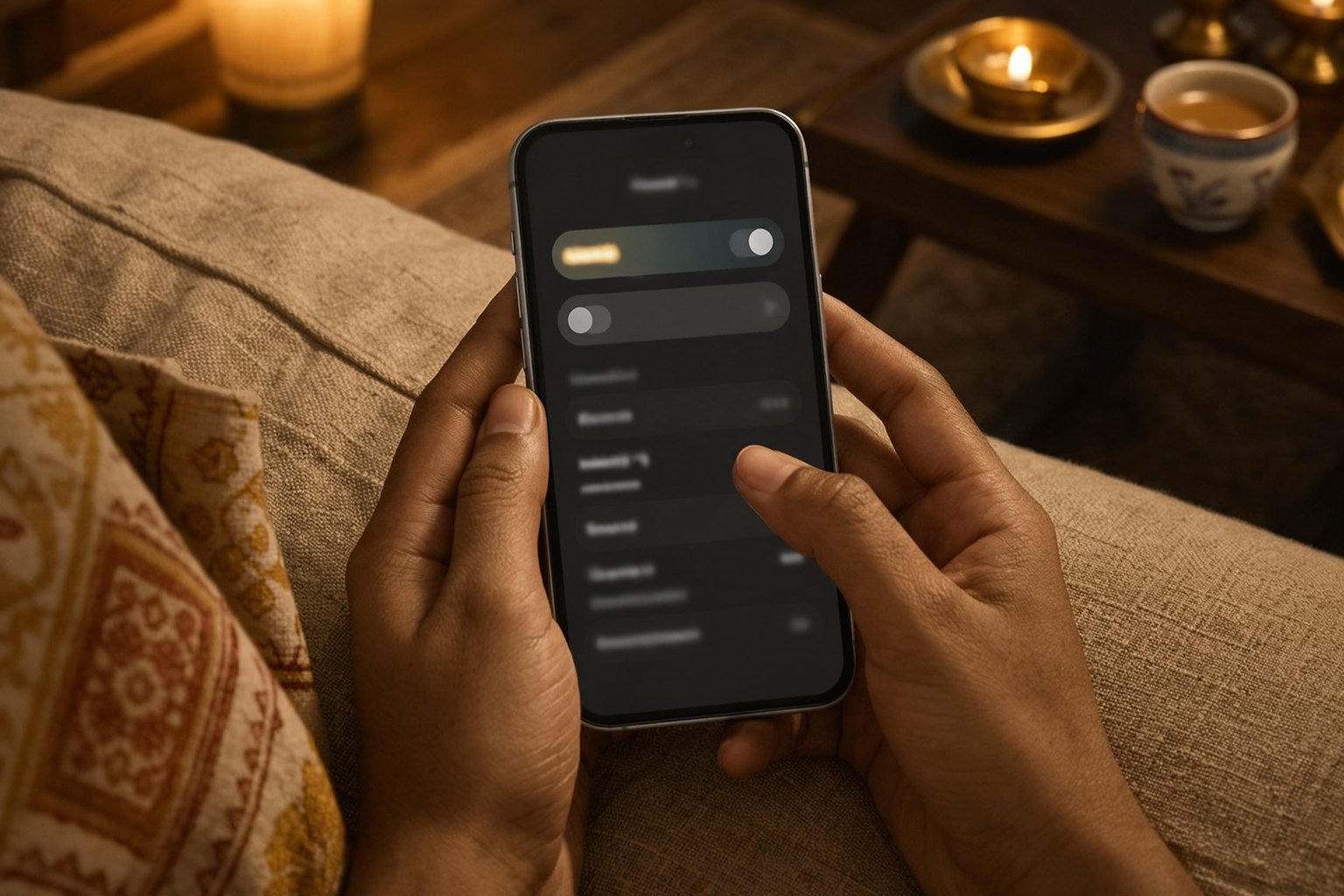
The rollout is gradual, so your app may still show the older layout for a few days. Labels can also vary slightly between versions. These steps follow Google’s help pages:
On a phone (Android or iPhone)
- Open the Gemini app and tap your profile photo or initial at the top right.
- Go to Gemini History (older builds call it Gemini Apps Activity).
- Find the option about using your chats to train generative AI models and turn it off.
- Leave History on if you still want to search your old chats.
On a laptop
- Go to gemini.google.com and sign in.
- Open Settings & help at the bottom left, then choose Activity or History.
- Switch off the training option. On the same page you can also shorten auto-delete from 18 months to 3 months.
If you only see the old Keep Activity toggle, the update hasn’t reached your account yet. You can wait, or turn Keep Activity off for now and switch History back on once the new layout appears.
What the new setting does not do
This is the part most people will miss. Turning off training is a real improvement, but it doesn’t mean Google never sees your chats. According to Google’s updated privacy hub:
- Chats are still processed and can be reviewed. Even with training off, Google says it uses your chats to respond to you and to protect Google, its users and the public, “including with help from human reviewers”.
- Feedback breaks the rule. If you tap thumbs up or down, or send a report, that conversation can still be used, along with context from the last 24 hours of your chats.
- Reviewed chats stay for up to three years. They are separated from your account, but deleting your history doesn’t remove them.
- History off now means about two months. Google says that if you switch History off, future chats will still be saved for “around 2 months”. 9to5Google notes the current window is 24 hours for chat context and 72 hours for safety purposes, so this is a longer period than before.
- Anonymised data isn’t covered. The hub says your Gemini settings don’t control processing of chats to create anonymised data used to improve Google services.
Work and school accounts follow different rules, set by your organisation’s Google Workspace admin. If you use Gemini through an office account, check with your IT team rather than relying on these steps.
Why this matters for Gemini users in India
Gemini is built into Android phones, Google Messages and Gmail here, and many young users got Google AI Pro free through Jio’s offer last year. A lot of people are sharing far more with it than they realise: salary slips for tax questions, screenshots of bank messages, medical reports, even photos of Aadhaar or PAN cards to “read the details”. On family phones, one Google account is often shared by parents and children, which means one person’s settings apply to everyone’s chats.
India’s Digital Personal Data Protection Act gives people more say over how companies use their data, and global AI firms are adding controls as data rules tighten in different countries. OpenAI, for instance, has just started processing some API requests inside India for businesses that need it, as the Economic Times reported last week. But privacy law doesn’t change the settings on your phone. You still have to flip the switch.
A simple privacy routine for Gemini
- Turn training off, keep History on if you like searching old chats. For most people this is the best balance.
- Use Temporary Chat for anything sensitive. Google says temporary chats aren’t used to train its models, though they are kept for around two months for safety.
- Never paste full ID numbers, passwords or OTPs. If you need help with a form, cover the numbers first. Google’s own advice is not to enter anything you wouldn’t want a reviewer to see.
- Set auto-delete to 3 months. Less stored history means less to worry about later.
- Check connected apps. If Gemini can read your Gmail, Drive or Photos, review those links under Apps in settings.
If you have been testing Gemini’s newer tricks, like the ones in our guide to Gemini task automation in India, this is a good moment to check your settings, because agents that act for you also see more of your data. And for a wider look at always-on gadgets and privacy, read our piece on Apple Watch Live Rewind.
Our take
This is a fair fix to a setting that never made sense. People wanted their chat history and their privacy, and Google made them choose one. Now they don’t have to. But it is a training switch, not a privacy shield: human review, feedback and the new two-month retention window all still apply. Spend two minutes on the settings today, and keep using Temporary Chat for the conversations you’d rather nobody read.
FAQ
Can I keep my Gemini chat history without it being used for AI training?
Yes, once the update reaches your account. Google’s new settings let you keep History on while turning off the separate option for training generative AI models. The rollout started on 16 November and will take a few weeks.
Does turning off training mean Google can’t read my Gemini chats?
No. Google says chats are still used to respond to you, process feedback and keep the service safe, with help from human reviewers. Reviewed chats can be kept for up to three years.
Are Gemini temporary chats private?
They aren’t used to train Google’s AI models and don’t appear in your history, but Google keeps them for around two months to respond to you and protect the service. Avoid sharing ID numbers or passwords even in temporary chats.